Features & Extensions
This page demonstrates the features enabled in the default zensical.toml of doc-skeleton. Zensical separates configuration into three categories:
- Built-in plugins are enabled under
[project.plugins], for example[project.plugins.awesome-nav]. - Markdown extensions are enabled under
[project.markdown_extensions], for examplefootnotes = {}. - Theme features are enabled in the
featureslist under[project.theme].
Supported plugins and Markdown extensions are included with Zensical unless their documentation explicitly requires another package.
Navigation with awesome-nav
The built-in awesome-nav plugin is enabled with:
Navigation is configured with .nav.yml files inside docs/ and its subdirectories. For example:
nav:
  - filename.md
  - another_file.md
  - directory
  - another_dir
  - "*"
  - last_file.md
Use "*" to include files and directories that have not been listed explicitly. The asterisk must be quoted because it has a special meaning in YAML.
Text-related features
The following features are enabled under [project.markdown_extension].
Emojis
Emoji shortcodes are enabled by the configuration:
pymdownx.emoji.emoji_index = "zensical.extensions.emoji.twemoji"
pymdownx.emoji.emoji_generator = "zensical.extensions.emoji.to_svg"
Write an emoji shortcode such as :smiley: to render  .
.
See Icons and Emojis.
Footnotes
Footnotes are enabled with:
Add a reference such as [^example] to the text and define it elsewhere with [^example]:. Here is one footnote reference 1.
Highlighting and text formatting
Various text formatting features are enabled with e.g.:
Examples are:
- This is a caret (underlining): insertion.
- This is a mark: highlight.
- This is a tilde (deletion):
deletion. - This is a key: Ctrl+Alt+Del.
Task lists
Task lists and custom checkboxes are enabled with:
Example:
- Create the course repository
- Update the site configuration
- Add the course content
- Publish the site
Code blocks
Syntax highlighting
Syntax highlighting is configured with pymdownx.highlight, while fenced and inline code are enabled with pymdownx.superfences and pymdownx.inlinehilite.
The copy and annotation buttons are theme features:
Example:
 Code annotations can contain formatted markdown.
Syntax highlighting supports the languages available in Pygments
Content tabs
Content tabs are enabled with:
They also rely on pymdownx.superfences when tabs contain fenced code blocks.
Admonitions
Admonitions are enabled with:
The admonition extension provides regular admonitions beginning with !!!. The pymdownx.details extension provides collapsible admonitions beginning with ???.
Tip
Use !!! tip "Title" to create an admonition with a custom title.
Exercise
The question type is useful for exercises and assignments.
More information
Use*??? note to create a collapsed block that the reader can open.
Quote
The way to get started is to quit talking and begin doing. Walt Disney
The body of an admonition must be indented by four spaces.
Images and glightbox
Use relative paths for local images and prefer SVG for diagrams and illustrations. A solid light background helps keep text and lines visible in both light and dark modes.
The built*in *lightbox plugin is enabled with:
It makes rendered images clickable. Select the image below to open the pop-up lightbox.
Figure 1: An example SVG illustration. Note that the image is an SVG with small dimensions. Thus, the image in the lightbox will be displayed with a smaller size than on the page, which uses percentage-based sizing.
Affinity Designer
Enable Force Pixel Alignment while creating the artwork. Export the finished image with the SVG (for export) preset.
Adobe Illustrator
Create the document with these settings:
- Units: Pixels
- Color mode: RGB
- Preview mode: Pixel
Enable View > Snap to Pixel.
Export the finished artwork with File > Export > Export As... > SVG. Enable Minify and Responsive. One decimal place is usually sufficient when shapes have been aligned to the pixel grid.
Excalidraw
Excalidraw diagrams can be exported as SVG or PNG. Keep the original .excalidraw file in docs/images/ so the diagram can be edited later. You could also use Excalidraw Extension on VS Code, but that is outside the scope of this example.
When exporting PNG files, enable the background. Transparent background may make text or lines difficult to see in dark mode.
Diagram example
The diagram below is an SVG with a light background. Select it to open it with glightbox.
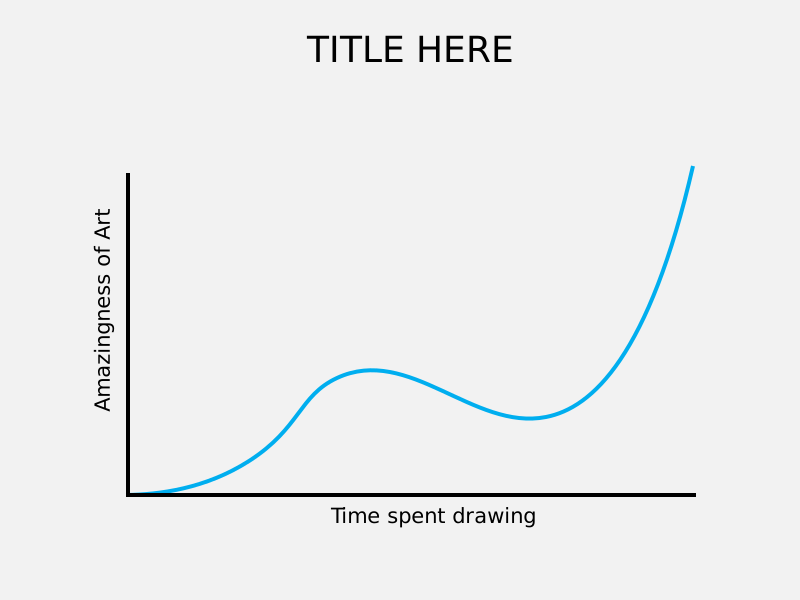
Figure 2: Line diagram showing the relationship between time spent and the quality of artwork
Mermaid diagrams
Mermaid diagrams are a type of diagram that can be created using a simple text-based syntax. They are particularly useful for creating flowcharts, sequence diagrams, and other types of diagrams. Their rendering is enabled with the pymdownx.superfences extension, which allows for custom fenced code blocks:
[project.markdown_extensions]
pymdownx.superfences.custom_fences = [
  { name = "mermaid", class = "mermaid", format = "pymdownx.superfences.fence_code_format" },
]
Create a diagram with a fenced code block named mermaid:
graph LR
  A[Start] --> B{Error?};
  B -->|Yes| C[Hmm...];
  C --> D[Debug];
  D --> B;
  B ---->|No| E[Yay!];
See the Mermaid documentation for more examples.
Features outside this template
Features such as LaTeX and MathJax are not configured in the basic doc-skeleton template. Project-wide additions and configuration synchronization are handled separately by doc-flesh.
-
This footnote is rendered because
footnotes = {}enables the Python Markdown Footnotes extension. ↩