Phase 4: Capstone
In this capstone phase, we connect n8n, Mattermost, and MinIO into one end‑to‑end workflow:
- Mattermost is the user interface (chat).
- n8n orchestrates the logic.
- MinIO acts as a simple document store (TXT files, RAG‑like).
The workflow listens to messages in a Mattermost channel, retrieves relevant TXT files from MinIO, passes them to an LLM for extraction/summarization, and posts a response back to Mattermost.
Warning
This is not a full RAG implementation. We skip embeddings and similarity search. Instead, we read all TXT files from a bucket and let the LLM reason over them. This is intentional for workshop simplicity.
Prerequisites (Already Provided)
Each attendee already has:
- ✅ A Mattermost account
- ✅ Permission to create Mattermost Integrations
- ✅ A MinIO username and password
In this documentation, we will use the example alias: fit-dassie. You should replace it with your own alias where applicable.
Architecture
High‑Level Architecture. For more realistic flow, we will check the Logs panel later on.
Mattermost (Channel Message)
        ↓
   n8n Workflow
        ↓
   MinIO (TXT files)
        ↓
   OpenAI (via proxy)
        ↓
Mattermost (Bot Reply)
Step 1: Prepare MinIO Storage
Log in to MinIO
Open the MinIO web UI. Default is: minio-console-aika-agent-workshop.2.rahtiapp.fi
Log in using:
- Username: your minio_username (e.g.
fit-dassie) - Password: your minio_password (e.g.
Fit-Dassie-42)
Identify your Bucket
The bucket with your username (e.g. happy-penguing) has already been created for you. Find it. Note that the buckets are shared, so do not place any sensitive information in them.
Warning
When you do add files to the bucket, notice that there are some naming rules that will make your life easy when referencing them in n8n:
- lowercase (
a-z) - no spaces
- no special characters (except dash
-)
Thus, prefer file names like colors.txt or menu.txt.
Upload TXT Files
Let's imagine a use case where some information arrives in a non-JSON format. It can be mostly machine-readable, but not fully structured. Parsing this sort of content without LLM, using only rules and regexes, can be a nightmare. But LLMs can easily extract relevant information from such content if prompted correctly. Let's see how we can get this working.
Below are two simple TXT files that you can use. You can also create your own TXT file if you want. Just make sure to keep it as unstructured TXT file. Files like Word (.docx) or PDF would require different handling, so we stick to simple TXT files for this workshop.
- menu.txt
- : download from menu.txt
- projects.txt
- download from projects.txt
Tip
The instructor can share these files using the Mattermost platform. Edit the files as you want. Maybe you don't like Potato Soup, so change it to something else.
Example content of menu.txt
Monday
- Starter: Potato Soup
- Main: Pasta
- Dessert: Cookies

Tuesday
- Salad for starters
- Mac and Cheese as main course
- Ice Cream to finish

Wednesday
- 1: Cale Soup
- 2: Reindeer Stew
- 3: Chocolate Cake

Thursday
Our offering includes Grated Salad, Pea Soup, Pan Cakes and also some levain bread.

Friday
- Tom Yum Soup
- Thai Curry
- Mango Sticky Rice
- Remember that it is a bring your kid to work day, so we have some fun snacks for the kids as well!
Example content of projects.txt
If the menu was a bit of a mess, this is a complete disaster. It is a mix of meeting notes, project descriptions, random thoughts, and even some to-dos. It is a nightmare to parse using traditional rules-based methods, but maybe LLM can invent data quality where there is none?
Project Alpha
Client: Northern Council
Goal: Build a dashboard
- Status: ongoing
- Deadline maybe end of June?
Notes: some data still missing

Tuesday work
Project Beta
This one is internal
Mobile app rewrite
Started 2023
* currently paused *
Reason: resources moved elsewhere

WEDNESDAY
- Gamma Initiative
Customer is unsure what they want
Phase 1: research
Phase 2: ?
We had a meeting but no notes were saved

Project Delta:
CRM migration
Owner: Jani?
Owner changed at some point
- kickoff done
- data export failed first time
Final go-live planned but not confirmed

Random notes
remember to check Minio bucket permissions
Project Epsilon might belong here
AI-based recommendation engine
client said “like Netflix but for reports”

Friday
Delivery review:
Alpha needs more testing
Beta no longer priority
Someone mentioned Project Zeta but no idea what that is

END OF FILE
Step 2: n8n Workflow
Create a new workflow in n8n and name it something like My Capstone Workflow. We will build the workflow step by step in the next sections. To start, we will only add the trigger, which will be a Webhook node that listens for incoming messages from Mattermost.
- Add a Webhook node to the workflow.
- Change the HTTP Method to
POST.
Now, the second step this is important. Change the HTTP Method to POST. Otherwise, the integration has no chance of working. Important peace of information here are the URLs. You will need the Test URL during this workshop. The production URL is something you would need in actual production use.
- ✅ Test URL:
https://n8n-aika-agent-workshop.2.rahtiapp.fi/webhook-test/<uuid> - 🚧 Prod URL:
https://n8n-aika-agent-workshop.2.rahtiapp.fi/webhook/<uuid>
Warning
Leave the Authentication to None and Response to "Immediately". Later on, the Mattermost Outgoing Webook will give us token, looking like xtzmfc18k3f5ixs1a61ap5551e, which we could use for validation. We won't do it in this workshop to save some time. In product, you should validate it.
Tip
Geeky note. You could now test it using e.g. CURL like this, assuming you press the Listen for test event button in n8n first:
Step 3: Create a Mattermost Integration
Create a channel
To avoid one ultra cluttered channel, create a new channel for this bot to operate in. You can name it after your alias, e.g. fit-dassie.
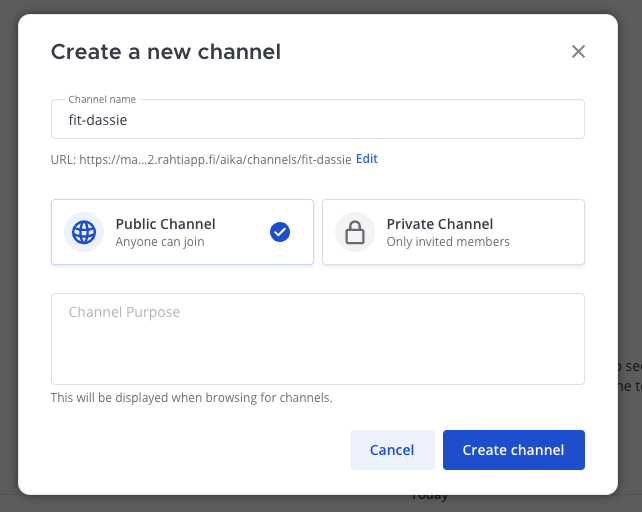
When creating a new channel, you can set the name to match your alias.
Go to Integrations
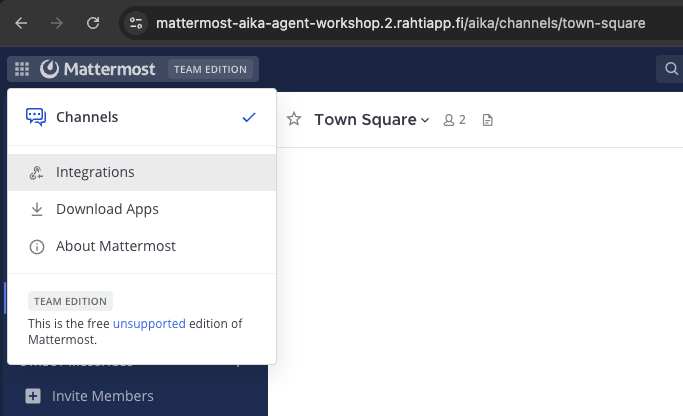
In Mattermost, the Integrations are in the top-left corner.
Create an Outgoing Webhook
The specific names are not that important, but for consistency, you can use:
- Title:
fit-dassie-out-test - Content Type:
application/json - Channel: same channel as above (e.g.
fit-dassie) - Trigger Words:
ask-test - Trigger When: First word matches a trigger word exactly
- Callback URLs:
https://n8n-aika-agent-workshop.2.rahtiapp.fi/webhook-test/<uuid>
Tip
Why -test? Because n8n provides two webhook URLs: one for testing and one for production.
We need to eventually add two Outgoing Webhooks: one for test, one for production.
Info
Ok, so what is a trigger word? It is a word that, when typed as the first word in a message, will trigger the outgoing webhook. For example, if you type:
ask-test What is on the menu today?
The trigger word is ask-test, so the outgoing webhook will include payload with the message text and other metadata. This allows n8n to know that it should process this message.
Step 4: Test the Integration
So far, we should be able to trigger the n8n workflow by sending a message in the Mattermost channel. Try it out:
- Go to n8n and click the
Listen for test eventbutton in the Webhook node. - In Mattermost, in your channel, type:
ask-test This is a test message
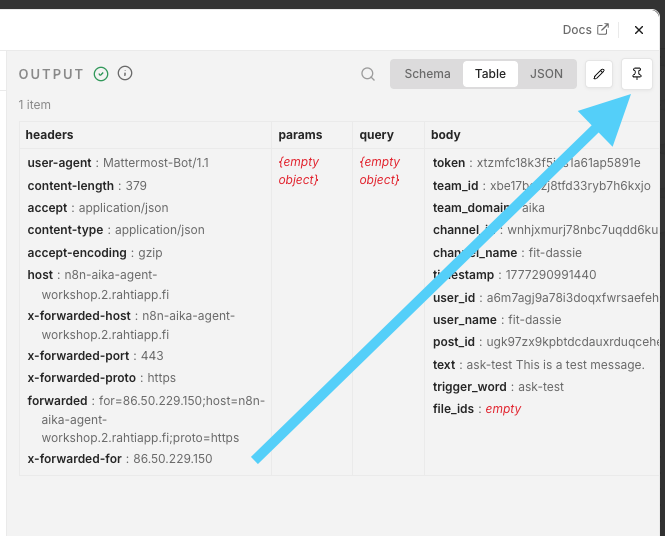
You should now see the message payload in n8n on the right side of the node. The right side is the output. You can press the Pin icon to make sure that the output stays the same. This will allow you to develop the pipeline without calling the webhook again and again.
Step 5: Add AI Agent.
Add AI Agent node that is connected to the Webhook. Open the settings and change:
- Source for Prompts:
Define below - Prompt:
Expression(see below)
You are a helpful assistant.

Answer ONLY using the information in the documents provided by the Minio S3 related tools. Try to infer what file you need based on the user query and the file names.

If the answer is not found, reply: "I could not find this information in the documents."

USER QUERY:
{{ $json.body.text }}
Step 6: Add Output Parser
In the AI Agent Node, activate the Require Specific Output Format. It will guide you to add an output parser. Click the link and it will open the Add Node menu to the right. Choose Structured Output Parser. Choose the default Schema type as Generate From JSON Example, and add the following JSON as an example of the output you want from the LLM:
Step 7: Add MinIO Tools
We will add two Tools. Click the + icon in the AI Agent node, and add an S3 Tool Node.
First tool: List Files in Bucket
Click the Set up Credential and fill the following content:
- You can name the tool in top-left corger to be
List Files in Minio Bucket. - S3 Endpoint:
http://minio:9000(Internal!) - Region: anything
- Access Key ID: your MinIO username (e.g.
fit-dassie) - Secret Access Key: your MinIO password (e.g.
Fit-Dassie-42) - Region:
us-east-1 - Force Path Style:
true(important for MinIO!)
In the Node itself, set the...
- Tool description:
List all files in the Bucket that is reserved for suitable files. - Resource: File
- Operation: Get Many
- Bucket Name:
fit-dassie(or your alias)
Second tool: Get File Content
It would be great idea to add another S3 node that would Download the file. Sadly, the data is returned as a binary in data field, and the AI Agent does not know how to handle it. Thus, we will use a non-optimal workaround: we will perform a typical HTTP GET request to the Minio URL of the file. This will return the content assuming that the file is public. And, the whole bucket has been made public by the instructor beforehand, so it should work.
- Create a new HTTP Request node (as a Tool).
- Name it
Get file from Minio. - Method:
GET - URL: Click the magic icon and make it to be automatically defined by the model.
Add a description to the URL field:
Warning
Replace the fit-dassie with your own alias. The <FILENAME> is a placeholder that the LLM will replace with the actual file name that it wants to read.
Now, if you execute it and add a direct path to the file, it should return a JSON like this:
[
  {
    "data": "Active Projects as of 2026/Q1\n\n- Title: FIT Dassie\n  Description: A project to build a simple RAG‑like workflow using n8n, Mattermost, and MinIO.\n  Status: Active\n- Title: FIT Capybara\n  Description: A project to explore agentic capabilities of LLMs using n8n and custom APIs.\n  Status: Planning\n- Title: FIT Otter\n  Description: A project to create a knowledge graph from unstructured data using n8n and Neo4j.\n  Status: Completed\n\n"
  }
]
Great!
Step 8: Add Model and Test
Now would be a good time to test that a model can call the API endpoints. Remember that our current prompt is "This is a test message", so there is a good chance that model will read all files, but not find any revelant information. However, we will find that the model is able to call the API and read the content of the files. Do as before, and:
- Add the OpenAI Chat Model node to the AI Agent Node
- Use the same credentials as before (OpenAI Proxy)
- Choose a suitable model. Task is simple, so the default
gpt-5-minishould be enough.
Now, execute the workflow using the pinned Webhook output. It should call all sorts of tools. Check the log for details of what happpened.
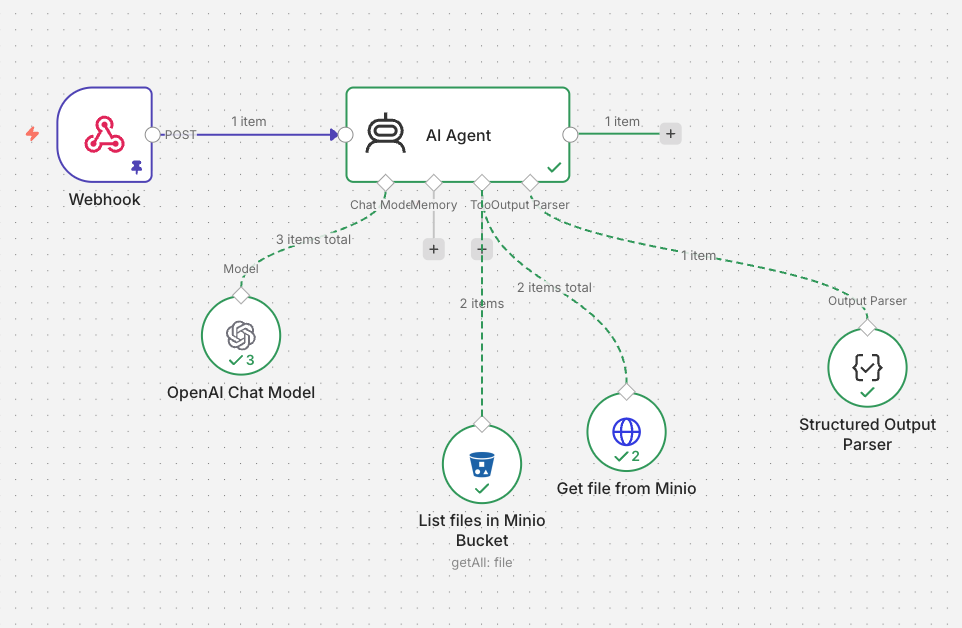
The Node graph looks like this at this point. Note that 1 call to List files Tool and the 2 calls to the Get file tool.
Step 9: Add Response to Mattermost
Finally, we want to post the answer back to Mattermost. For that, we will add a HTTP Request node as the last node in the workflow. This has two phases:
Create the Incoming Webhook in Mattermost
- Title:
fit-dassie-in-test(use your alias here!) - Channel:
fit-dassie - Username:
fit-dassie-bot
After the Incoming Webhook is created, copy the URL. It looks like this:
Add HTTP Request Node in n8n
- Add a HTTP Request node to the end of the workflow, connecting to AI Agent output.
- Set the Method to
POST. - Set the URL to the Incoming Webhook URL that you just copied.
Now, enable the switch that says Send Body. The Body Content Type should be application/json. For Specify Body, choose the Using Fields Below.
Body Parameters:
- Key:
text - Value: Drag the
answerfield from the AI Agent output here.
The value field should end up including expressione like {{ $json.output.answer }}.
Click the Execute step button, and you should see the output with data field having value ok. Now, if you head back to Mattermost, you should see a new message from the bot with the answer to your query.
Step 10: Final Testing
Now:
- Remember to Unpin the Webhook
- Press the large Execute Workflow button in the lower-middle of the screen.
This will make the Webhook to listen for incoming HTTP requests. Now, head to Mattermost and type a message that starts with the trigger word, e.g.:
"ask-test What can I eat on Wednesday?"
The bot, named fit-dassie-bot, should reply with something like:
fit-dassie-bot [BOT] 10:15 AM
    On Wednesday you can eat:

    * 1: Cale Soup
    * 2: Reindeer Stew
    * 3: Chocolate Cake
Warning
Note that you need to re-activate the workflow (press Execute Workflow button) every time you want to test it from Mattermost. This is because we are using the Test Webhook URL, which only listens when the workflow is active. In production, you would use the Production Webhook URL, which listens all the time. Pressing the Publish button would make it active at all times, but since we have not set up the production webhook, it would not work at all.
Since it it an LLM, you can also ask much more complex questions, like:
"ask-test What seems to be the healthiest meal of the week?"
fit-dassie-bot [BOT] 10:17 AM
    Thursday appears to be the healthiest meal of the week. The Thursday offering
    includes grated salad and pea soup (vegetable-based options), along with pancakes
    and levain bread, making it the most plant-forward/vegetable-rich option among
    the days listed.
Success Check
If the bot replies, you have successfully completed the capstone project! Congratulations!
If you are stuck
You can copy the teacher-made JSON from the code block below. However, you will need to change some things to make it work. At minimum, you should change:
Webhook
- Type unique value to the
Path
OpenAI Chat Model
- Credential will most likely need to be re-selected.
List files in Minio Bucket
- Create a new credential
- Change the bucket name to your own alias
Get file from Minio
- Change the URL to match your alias
Instructor Capstone JSON
Copy the code below to your clipboard (using the dedicated button) and paste it into an empty Workflow.
{
"name": "Instructor Capstone",
"nodes": [
    {
    "parameters": {
        "httpMethod": "POST",
        "path": "kissa",
        "options": {}
    },
    "type": "n8n-nodes-base.webhook",
    "typeVersion": 2.1,
    "position": [
        0,
        0
    ],
    "id": "0b9e4d1b-9501-4c4a-ac4f-b127594afcc9",
    "name": "Webhook",
    "webhookId": "29b2175b-a891-4e4b-b189-c0245a91e0c9"
    },
    {
    "parameters": {
        "promptType": "define",
        "text": "=You are a helpful assistant.\n\nAnswer ONLY using the information in the documents provided by the Minio S3 related tools. Try to infer what file you need based on the user query and the file names.\n\nIf the answer is not found, reply: \"I could not find this information in the documents.\"\n\nUSER QUERY:\n{{ $json.body.text }}\n",
        "hasOutputParser": true,
        "options": {}
    },
    "type": "@n8n/n8n-nodes-langchain.agent",
    "typeVersion": 3.1,
    "position": [
        288,
        0
    ],
    "id": "f09e825a-06ef-483a-a212-997252537262",
    "name": "AI Agent"
    },
    {
    "parameters": {
        "jsonSchemaExample": "{\n  \"answer\": \"This would contain the answer to the user query.\",\n  \"source_file\": \"menu.txt\"\n}"
    },
    "type": "@n8n/n8n-nodes-langchain.outputParserStructured",
    "typeVersion": 1.3,
    "position": [
        768,
        240
    ],
    "id": "10c57c65-d6ff-41aa-bef4-d5ac20bd1bbc",
    "name": "Structured Output Parser"
    },
    {
    "parameters": {
        "descriptionType": "manual",
        "toolDescription": "List all files in the Bucket that is reserved for suitable files.",
        "operation": "getAll",
        "bucketName": "helped-cattle",
        "options": {}
    },
    "type": "n8n-nodes-base.s3Tool",
    "typeVersion": 1,
    "position": [
        384,
        336
    ],
    "id": "4d2ffa2c-ae2f-4c5a-8c26-99de7f2b9f4b",
    "name": "List files in Minio Bucket",
    "credentials": {
        "s3": {
        "id": "N3XU32Ry9n1xXLUX",
        "name": "S3 account"
        }
    }
    },
    {
    "parameters": {
        "model": {
        "__rl": true,
        "mode": "list",
        "value": "gpt-5-mini"
        },
        "builtInTools": {},
        "options": {}
    },
    "type": "@n8n/n8n-nodes-langchain.lmChatOpenAi",
    "typeVersion": 1.3,
    "position": [
        144,
        208
    ],
    "id": "5e04ad23-e82f-4eaf-97a8-c61f969c0f51",
    "name": "OpenAI Chat Model",
    "credentials": {
        "openAiApi": {
        "id": "dqWPyikBx3zK7M2P",
        "name": "OpenAI account"
        }
    }
    },
    {
    "parameters": {
        "url": "={{ /*n8n-auto-generated-fromAI-override*/ $fromAI('URL', `The URI is in form: http://minio:9000/helped-cattle/<FILENAME>`, 'string') }}",
        "options": {}
    },
    "type": "n8n-nodes-base.httpRequestTool",
    "typeVersion": 4.4,
    "position": [
        528,
        304
    ],
    "id": "5e204f62-9498-4458-8543-4f7bec13f671",
    "name": "Get file from Minio"
    },
    {
    "parameters": {
        "method": "POST",
        "url": "https://mattermost-aika-agent-workshop.2.rahtiapp.fi/hooks/meqj6if5dfnkbqkcnry8eaef8w",
        "sendBody": true,
        "bodyParameters": {
        "parameters": [
            {
            "name": "text",
            "value": "={{ $json.output.answer }}"
            }
        ]
        },
        "options": {}
    },
    "type": "n8n-nodes-base.httpRequest",
    "typeVersion": 4.4,
    "position": [
        640,
        0
    ],
    "id": "8087b7a5-042e-485b-8560-9e6da928aaa1",
    "name": "Write back to Mattermost"
    }
],
"pinData": {},
"connections": {
    "Webhook": {
    "main": [
        [
        {
            "node": "AI Agent",
            "type": "main",
            "index": 0
        }
        ]
    ]
    },
    "Structured Output Parser": {
    "ai_outputParser": [
        [
        {
            "node": "AI Agent",
            "type": "ai_outputParser",
            "index": 0
        }
        ]
    ]
    },
    "List files in Minio Bucket": {
    "ai_tool": [
        [
        {
            "node": "AI Agent",
            "type": "ai_tool",
            "index": 0
        }
        ]
    ]
    },
    "OpenAI Chat Model": {
    "ai_languageModel": [
        [
        {
            "node": "AI Agent",
            "type": "ai_languageModel",
            "index": 0
        }
        ]
    ]
    },
    "Get file from Minio": {
    "ai_tool": [
        [
        {
            "node": "AI Agent",
            "type": "ai_tool",
            "index": 0
        }
        ]
    ]
    },
    "AI Agent": {
    "main": [
        [
        {
            "node": "Write back to Mattermost",
            "type": "main",
            "index": 0
        }
        ]
    ]
    }
},
"active": false,
"settings": {
    "executionOrder": "v1",
    "binaryMode": "separate"
},
"versionId": "1c1a1996-6130-4c48-b387-38144ef50b41",
"meta": {
    "instanceId": "e53c576b679870315a81fbcd46c7de92f0eac0d0f964a9aa3c2d1a6f430a2bce"
},
"id": "JjndJT9VUB2S6AE7",
"tags": []
}